Product Dimensions and Checkout page rates
For SMARTT Shipping to be able to figure out the accurate shipping rates for each checkout,
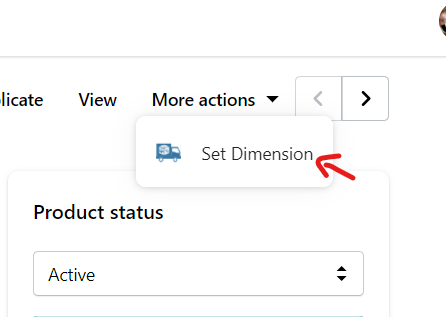
you will need to provide information about the dimensions of the products you are selling. You can do this from the Shopify Product page. Merely click on "More actions" at the top of the page and choose "Set Dimensions".
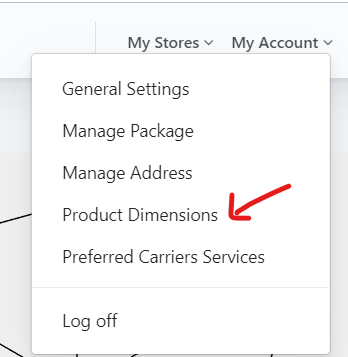
There is link to go to products list page in this app.
This will take you to a page where you can specify the dimensions of the product (and any variants it might have).
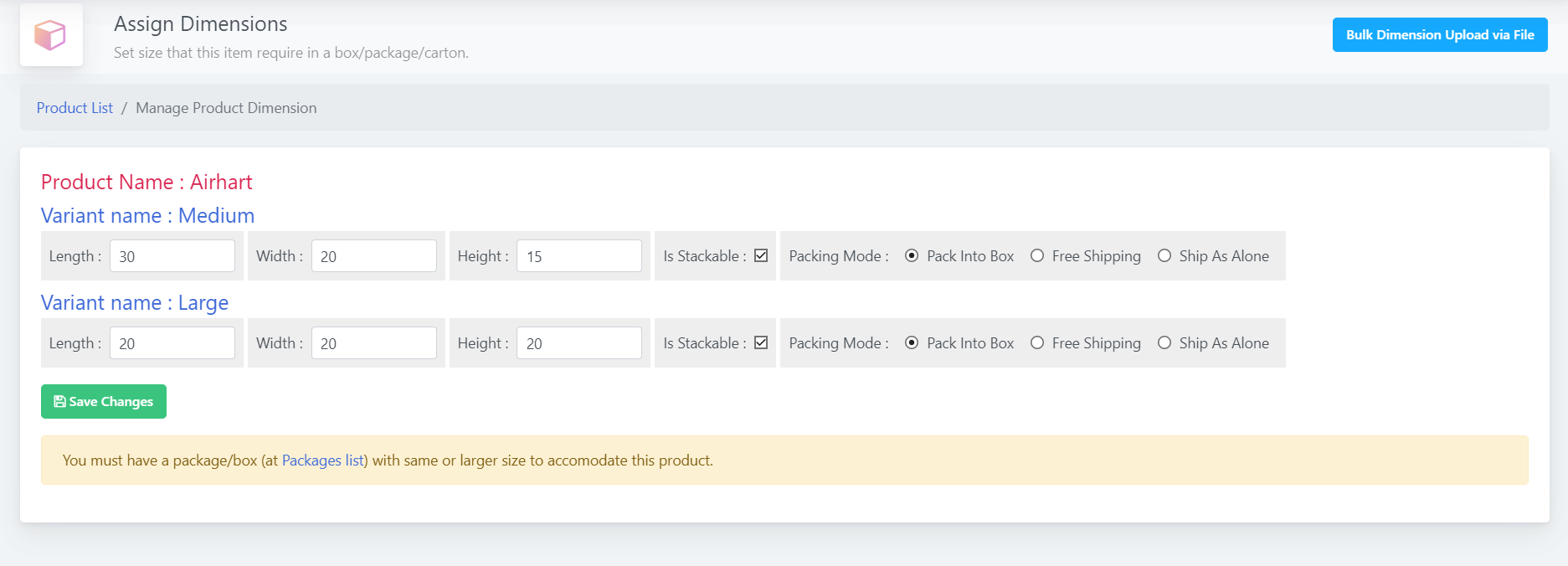
It is simple screen to set dimensions. There is Pack Mode fields which need some clarification for you.
There is link to go to products list page in this app.
This will take you to a page where you can specify the dimensions of the product (and any variants it might have).
It is simple screen to set dimensions. There is Pack Mode fields which need some clarification for you.
You must specify one of three possible pack modes for a product:
- Pack into box (default)
- Free Shipping : by setting this option for this product, SMARTT Shipping will not include such products in its shipping rate calculations processs.
- Ship As Alone : Select this option , If you want a product to ship alone instead of packing with other items together.
If you have a large number of products, we can help upload the required information in bulk. For that, begin by downloading Product List file.
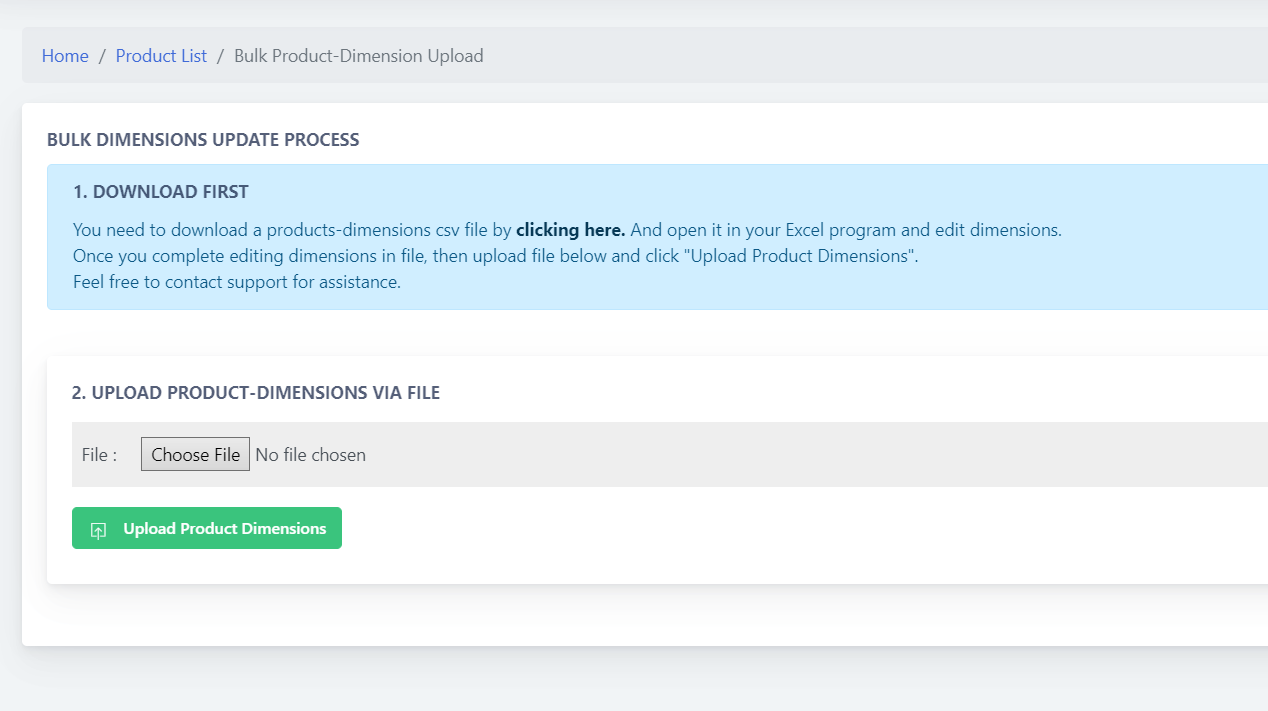
Fill in those columns with your dimension information. You can also change the default values for "IsStackable" (0 as Not Stackable , 1 as Stackable) and "PackMode" (0 as PackIntoBox, 1 as FreeShipping , 2 as Ship It Alone) if appropriate for any of your products, but do not add, rearrange, or delete columns.
Fill in those columns with your dimension information. You can also change the default values for "IsStackable" (0 as Not Stackable , 1 as Stackable) and "PackMode" (0 as PackIntoBox, 1 as FreeShipping , 2 as Ship It Alone) if appropriate for any of your products, but do not add, rearrange, or delete columns.
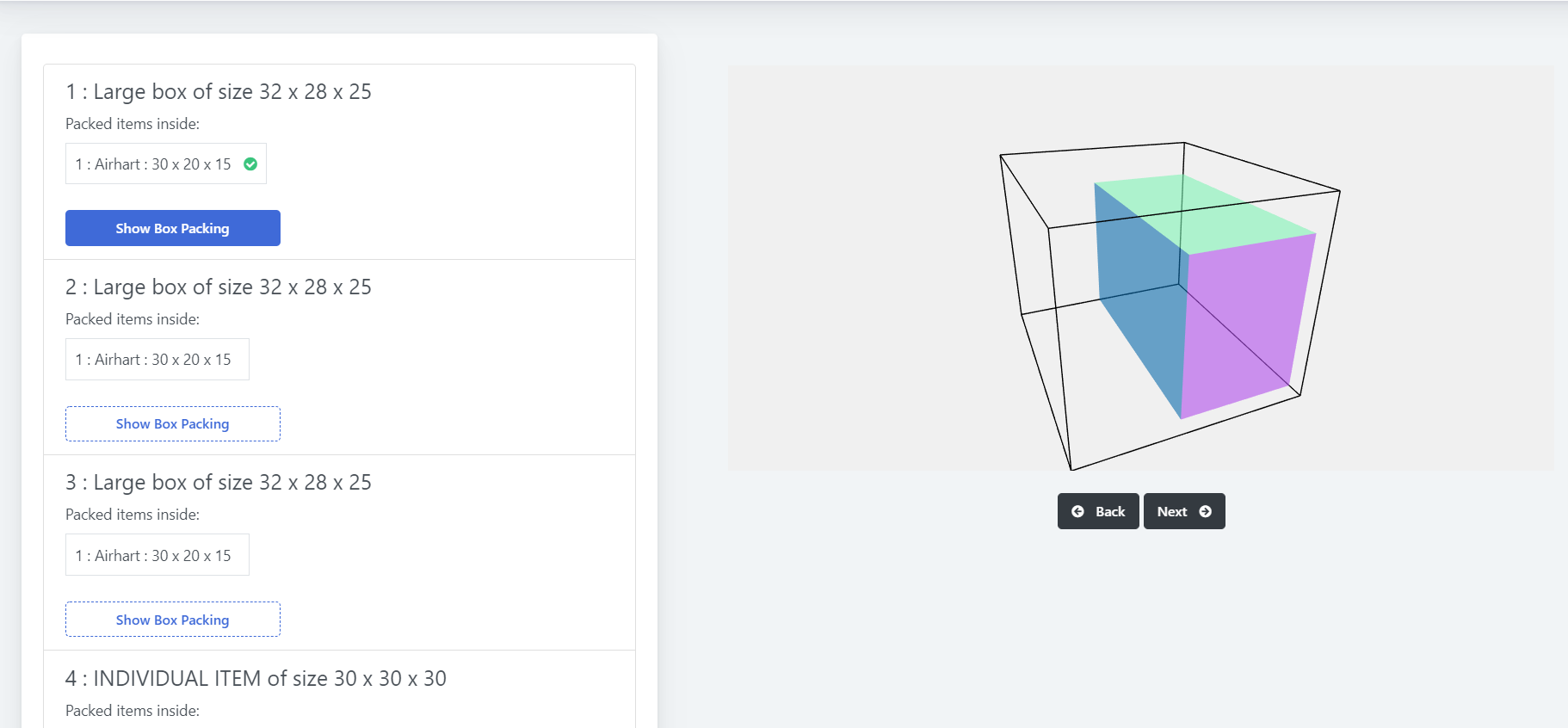
You can click on "More actions" at the top of the order page and then choose "SMARTT Packing Geometry".
This action will show how to pack the items in this order based on the shipping boxes you had available at a time.
It also refers to how SMARTT Shipping app calculated rates for checkout page. (if you have not make any changes in Packages after this order.)
If you face any other issues, use Contact us link or email us at support@smarttshipping.com.
If you face any other issues, use Contact us link or email us at support@smarttshipping.com.
Few important points to note.
What if I’m not getting rates ?
- For packing purposes, App will treat all products and shipping boxes as rectangular cuboids, which is to say, as ordinary boxes.
- For shipping tubes, set the length to the length and set the width and height to the tube diameter.
- For products that are not rectangular cuboids, you should provide a length, width and height that will encompass the object.
- SMARTT Shipping's packing algorithm is smart, but it’s not smart enough to nest products or place one product inside another. It is a heuristic algorithm, for finding the best way to pack boxes into a package/box/carton of given dimensions.
What if I’m not getting rates ?
- Be sure you have enabled it from Setting screen in SMARTT Shopify App.
- Be sure you have assigned dimensions to each of your products (or, at very least, to the ones in the cart you are testing).
- Be sure the shipping box or boxes aren’t too big, too heavy, or too numerous for the carrier, service, and destination.
Copyright © SMARTTShipping 2026