Setup Instructions
You will be prompted for SMARTT Api key after installing app into your store. If you are existing customer of SMARTT Shipping then you will have APIKEY in your account's Setting screen.
If you are new to SMARTT Shipping then you need to request from support@smarttshipping.com
Once you have APIKEY, open Setting screen and enter apikey in input box. Enter your company name and phone number & click on Save button.
If you are new to SMARTT Shipping then you need to request from support@smarttshipping.com
Once you have APIKEY, open Setting screen and enter apikey in input box. Enter your company name and phone number & click on Save button.
After successfully saving Setting screen with APIKEY, Go to Manage Packages screen from top right side menu link.

During label creation, the default package template will be the first choice in the drop-down list under Packages.
-
Click on "Refresh SMARTT Packages" button. It will add some default packages by SMARTT which are connected with courier companies. (For e.g. Purolator Express Envelope, Purolator Express Pack etc..)

- Now click on "Create Package" button to add your own new package. This is useful if you often ship the same size package or have several commonly shipped sizes. You can select any one of those package to use during the label creation workflow.
-
Enter the requested information (Name, Weight & Dimensions) and click the Save Package button. If you would like to set a package as the default that is used when creating labels, check the "Is Default" checkbox.
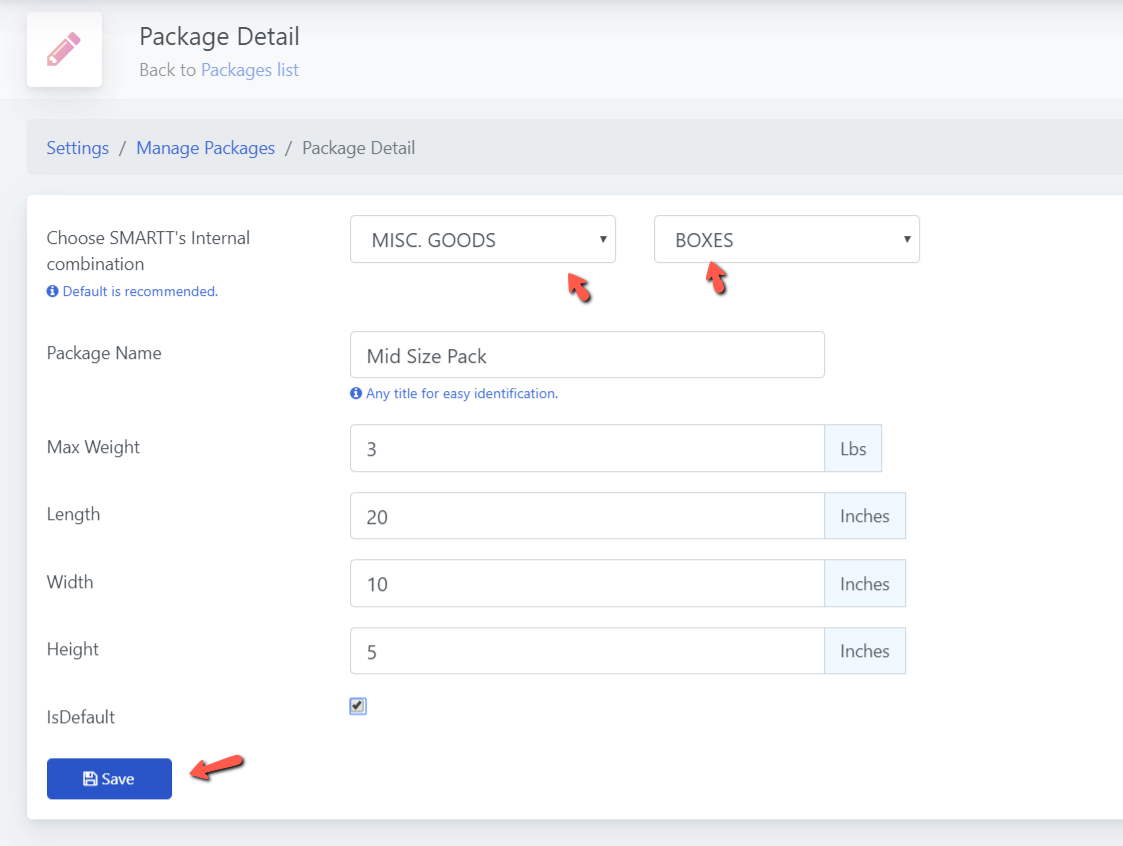
During label creation, the default package template will be the first choice in the drop-down list under Packages.
-
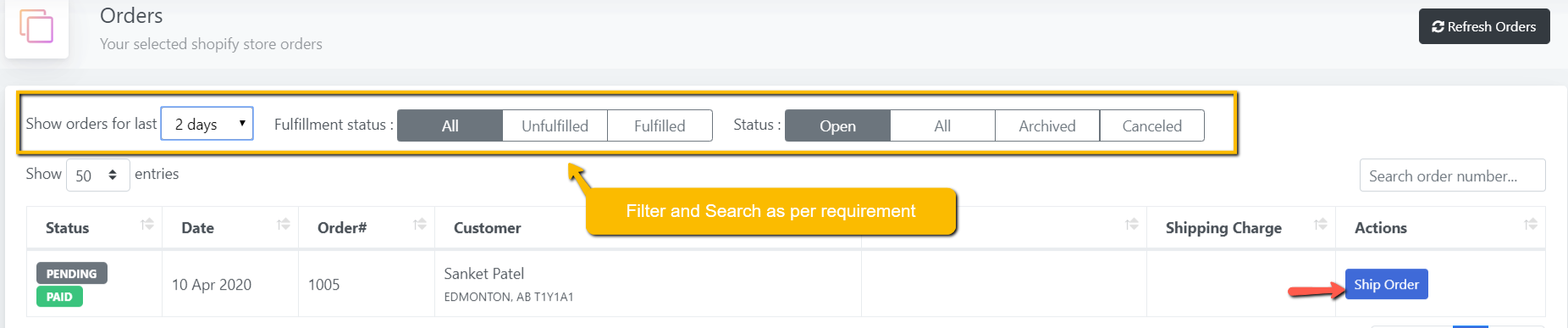
Orders screen is displaying your store's orders. If it is not fullfilled then it will display "Ship Order" button. Click on that button to generate shipping labels for that order.
-
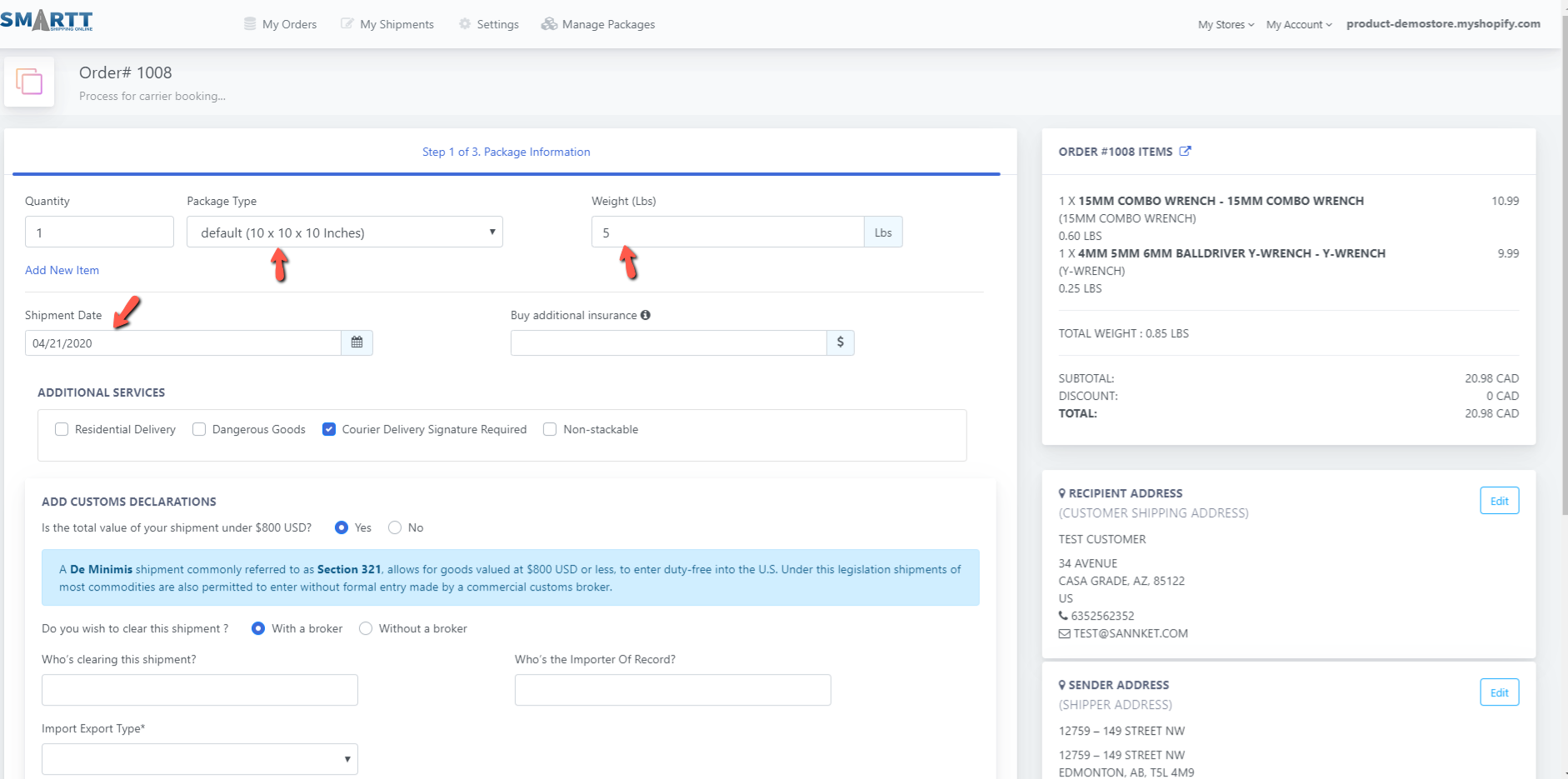
It will open shipment screen , you need to choose a package and adjust weight based on Order shipment details. You can see Recipient Address, Sender Address and Order details on right side sections.
-
For international shipment, there will be Customs related information which is mandatory to fill up. (although most of things will be prefilled.)
-
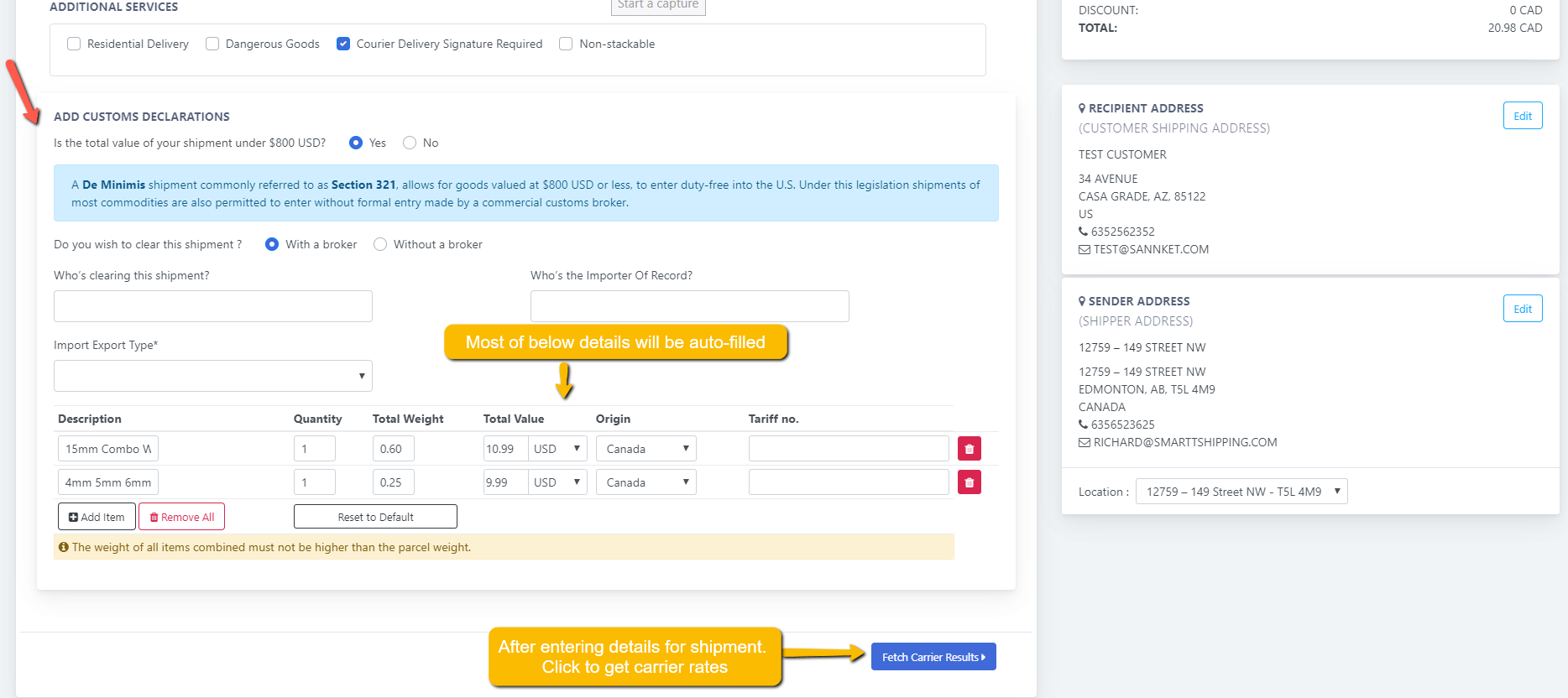
For international shipment, there will be Customs related information which is mandatory to fill up. (although most of things will be prefilled.)
- Click on "Fetch Carrier Rates" button after filling up details. It will fetch best discounted carrier rates as per your shipment details.
-
Select a carrier based on your requirement, shipping rate & transit time. "Complete Shipment Now" button will generate shipping labels and book a pickup with that Carrier.
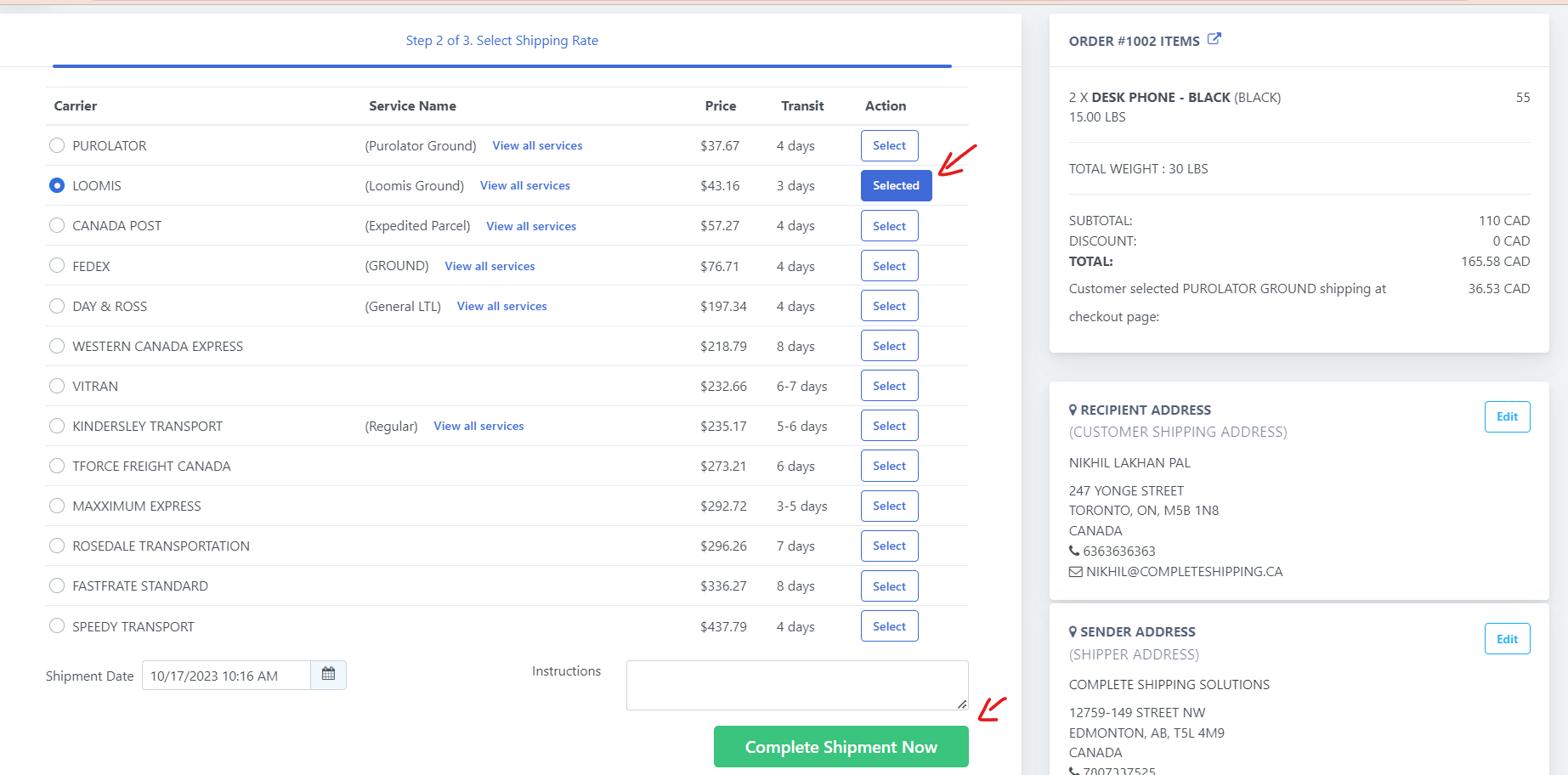
- If there is any error at end of process, due to pickup date or address detail related points, make adjustments for it in previous steps and retry.
-
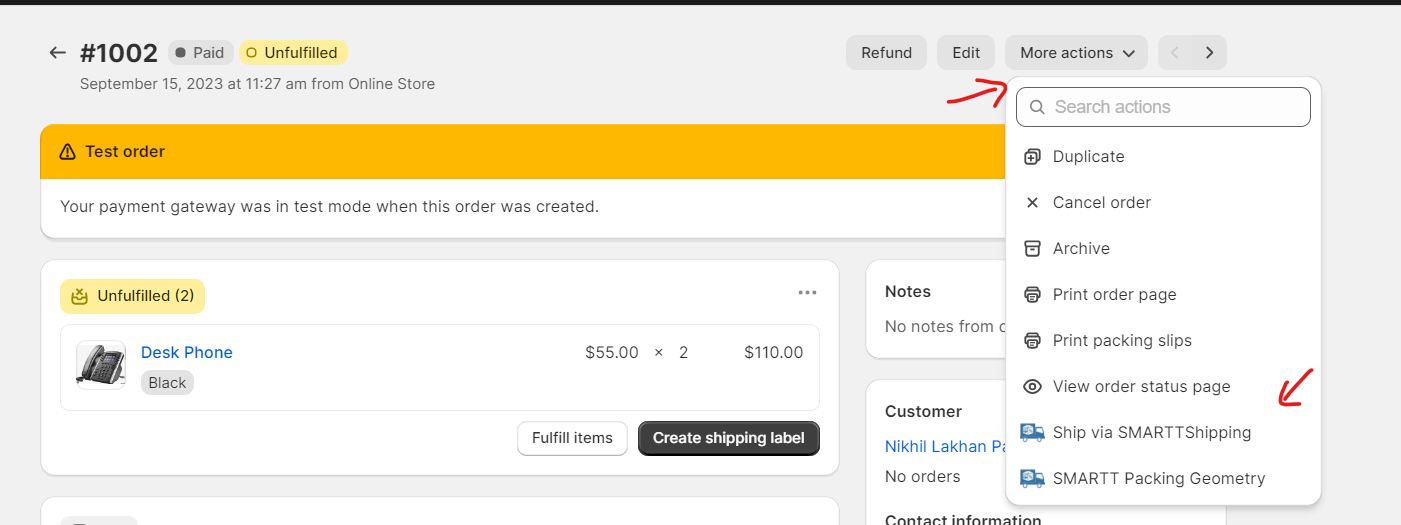
You can access Ship Order short cut action from your Shopify Admin panel > Order Detail screen > More actions > Ship via SMARTTShipping
If you face any other issues, use Contact us link or email us at support@smarttshipping.com.
-
SMARTT Shipping will able to show rates on checkout page for those stores which have Advanced Shopify plan or higher. For Shopify's Basic Plan user, You can get that feature by following this link.
and here shopify's documentation about it. -
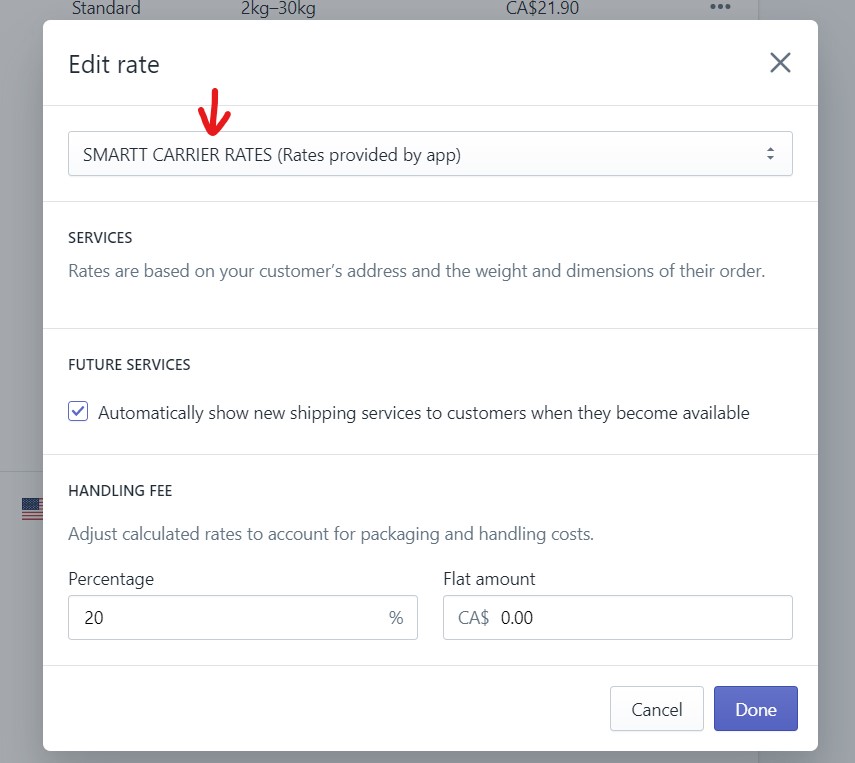
You can adjust markup over our provided shipping rates at checkout by following this instructions . It is possible from Shopify Admin side.
In that window "Edit Rate" window, you will need to select our app like below screenshot.
-
You have option to filter out results for checkout page.
- Courier/Express Only - Enabling this option will display courier result only at the checkout page.
- Courier + LTL Truck carriers - Enabling this option will display LTL and Courier carriers results at the checkout page.
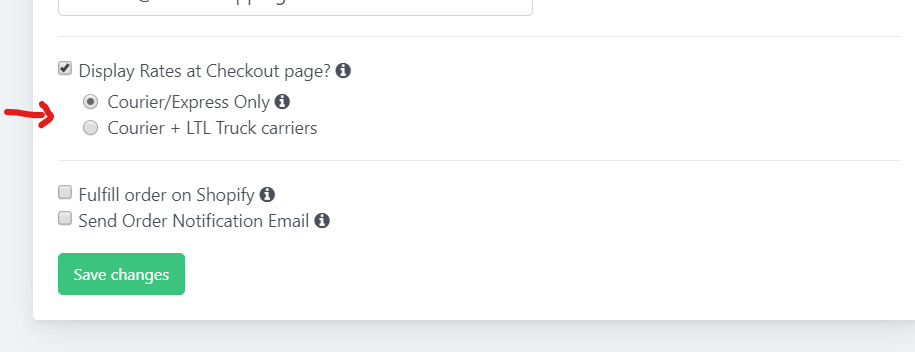
** ABOVE TWO OPTIONS ONLY AFFECT CHECKOUT RESULTS.
-
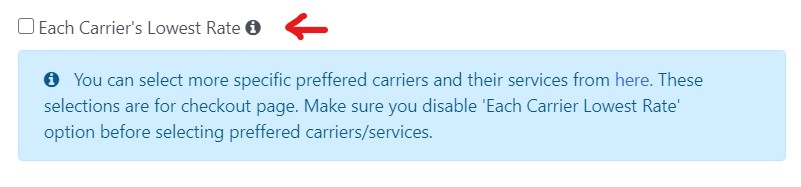
MORE OPTIONS : You can display only lowest carrier rate at checkout page shipping rates.
To display accurates at checkout page - you must set dimensions to your products in our app. More details here.
Preferred Carrier services
You have option to show only your intended carrier services at checkout page. You can achieve it by following below steps.
You need to de-select "Each Carrier's Lowest Rate" option. After that, go to Preferred Carriers selection screen. Select carrier services options there and click on "Save Changes" button on top-right side.
Copyright © SMARTTShipping 2026